

1. Transfer Tools
Introducing Instant Pay — our new money-sending tool allows you to transfer funds instantly. Whether you’re sending money to friends, family, or handling urgent transactions, Instant Pay ensures that your money moves quickly and securely. Internal Transfers – Did you know you can transfer funds to other AAGCU members? Similarly to Instant Pay, this allows you to send instantly, specifically to AAGCU members. This is a beloved tool of one of our Member Services Representatives in Anchorage, Kalen. Kalen Belanger | Member Services Representative “I love having the ability to transfer to other CU members! I send money to my family all of the time.” Bill Pay - Managing your bills has never been easier. Use our online banking tool to pay your bills conveniently and on time. Simplify your financial management and avoid late fees with our easy-to-use bill payment feature. To find this feature, select "Transfers" on the lower bar of your screen and it will take you to the page shown above.
  In online banking, select "Transfers" on the left toolbar.
2. Remote Deposit Capture
Depositing checks is more convenient than ever with our Remote Deposit Capture feature. Simply open the app and take a picture of the front and back of your check (don’t forget to endorse it) and deposit it directly into your account using our website or mobile app. If you’re not local to one of our branch locations, it’s a fast and secure way to manage your deposits without having to go in-person. This is the favorite of both Mikah, our Member Experience Manager, as well as our Loan Department Manager, Donna. Mikah | Member Experience Manager “My favorite has to be remote deposit capture! So incredibly convenient to be able to deposit checks from the mobile app! Donna Brehmer | Loan Department Manager “My favorite online banking tool is Remote Deposit Capture, as well." You can locate Remote Deposit Capture by clicking on “Deposit” on the bottom of your screen to take you to the screen shown above. This feature is only available in mobile banking.
3. Account Alerts
Account Alerts. You can customize alerts to send you emails or SMS alerts for balances (i.e. if balance on an account is less than a specified amount), withdrawals (i.e. withdrawal over a specified amount), periodic balance alerts, debit card transaction alerts, and more. This not only is convenient so you can stay informed about your accounts, but it is great fraud prevention. To locate, click the three horizontal lines at the top of the app. Scroll down to "Settings" and select "Alert Settings". There you will find alert options where you can set up your account specific alerts.
  In online banking, find this feature by selecting "More" on the left toolbar, select "Alert Settings", then toggle to "Account Specific Alerts".
4. Support Messages
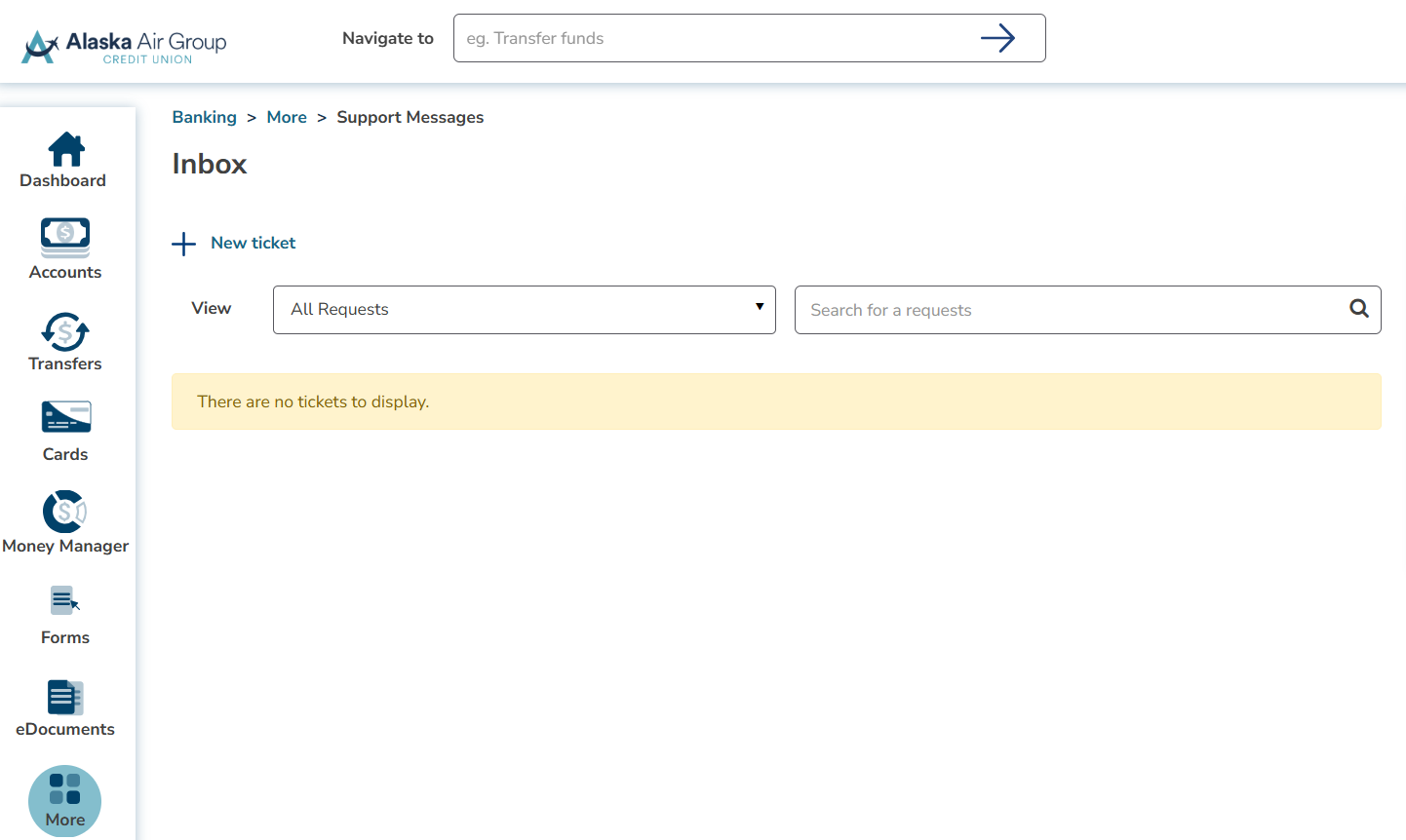
Securely get in touch with AAGCU. Ask questions, submit account or transaction inquiries, and review existing tickets all conveniently within Online or Mobile Banking. To locate, click the three horizontal lines at the top of the app. Scroll down to “More” and click “Message us”. This is where you can create a ticket and contact us securely.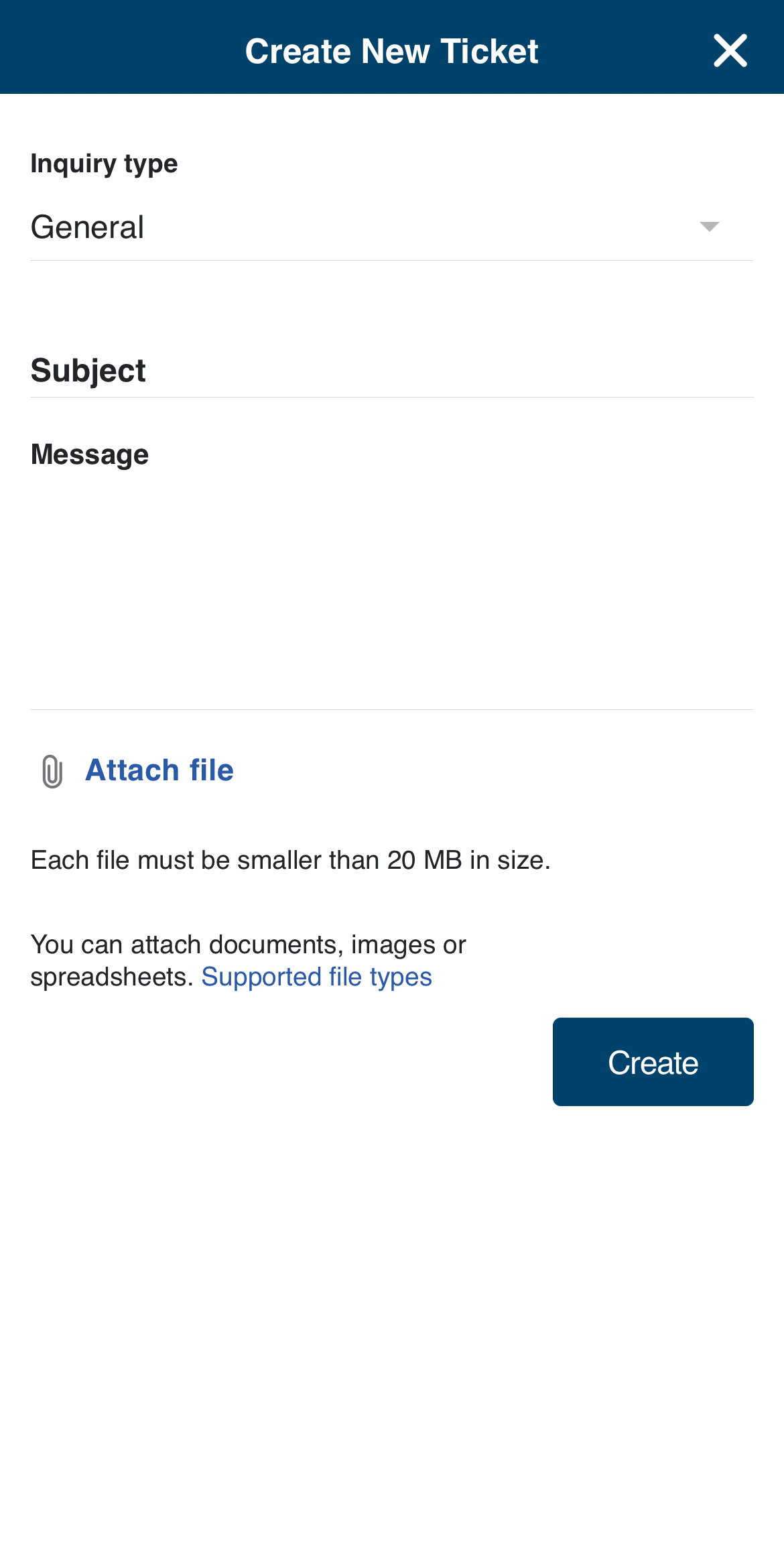 In online banking, find this page by selecting the “Inbox” in the top right corner.
 In online banking, find this page by selecting the "Cards" tab in the left toolbar.
5. Money Manager: Banzai Budgeting Tool
Managing your finances just got easier with our Money Manager tool, powered by Banzai. Our free budgeting tool allows you to evaluate your expenses and set budgets to help you achieve your financial goals—all in one place. Banzai helps you make informed decisions and stay on top of your financial health. Marketing Coordinator, Abi, is a big fan of Banzai. Abi | Marketing Coordinator “I use Banzai all the time! The budget calculator is one of my favorites to visualize my spending habits and how I can save more money!” To find this page in mobile banking, click the three horizontal lines on the navy blue bar on the top of your screen. From here, under “Manage Accounts” select “Money Manager” to find the screen shown above.
  In online banking, find this page by selecting the "Money Manager" tab on the left toolbar.
6. Travel Notification
Planning a trip? Don’t forget to let us know! With our travel notification feature, you can easily notify us of your travel plans. Simply select your card, enter your travel location, provide your contact information, and specify your travel dates. This way, you can ensure access to your funds while you’re on the go. To locate this page, click the three horizontal lines on the navy blue bar on the top of your screen. From here, under “Manage Accounts” select “Travel Notifications” to find the screen above.
  In online banking, find this page by selecting the "More" tab on the left toolbar, then select "Travel Notifications".
7. E-statements
Skip the paper statement - stay organized and keep track of your financial history with e-statements. With e-statements, you can access your current statement quicker than print statements, reduce paper waste, and review previous e-statements at any time in online and mobile banking. Mikah | Member Experience Manager “I also love e-statements – convenient and better for the environment.”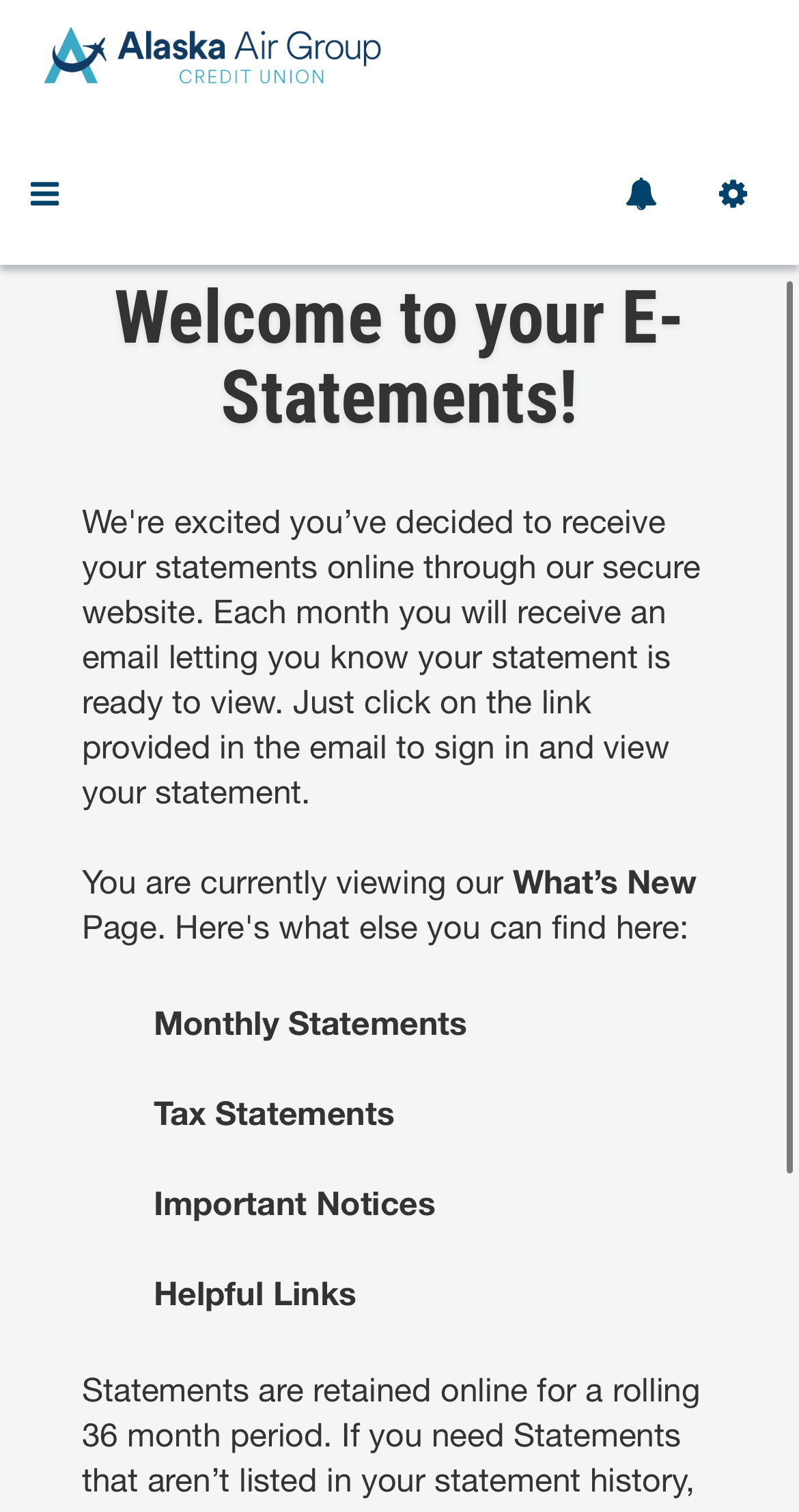
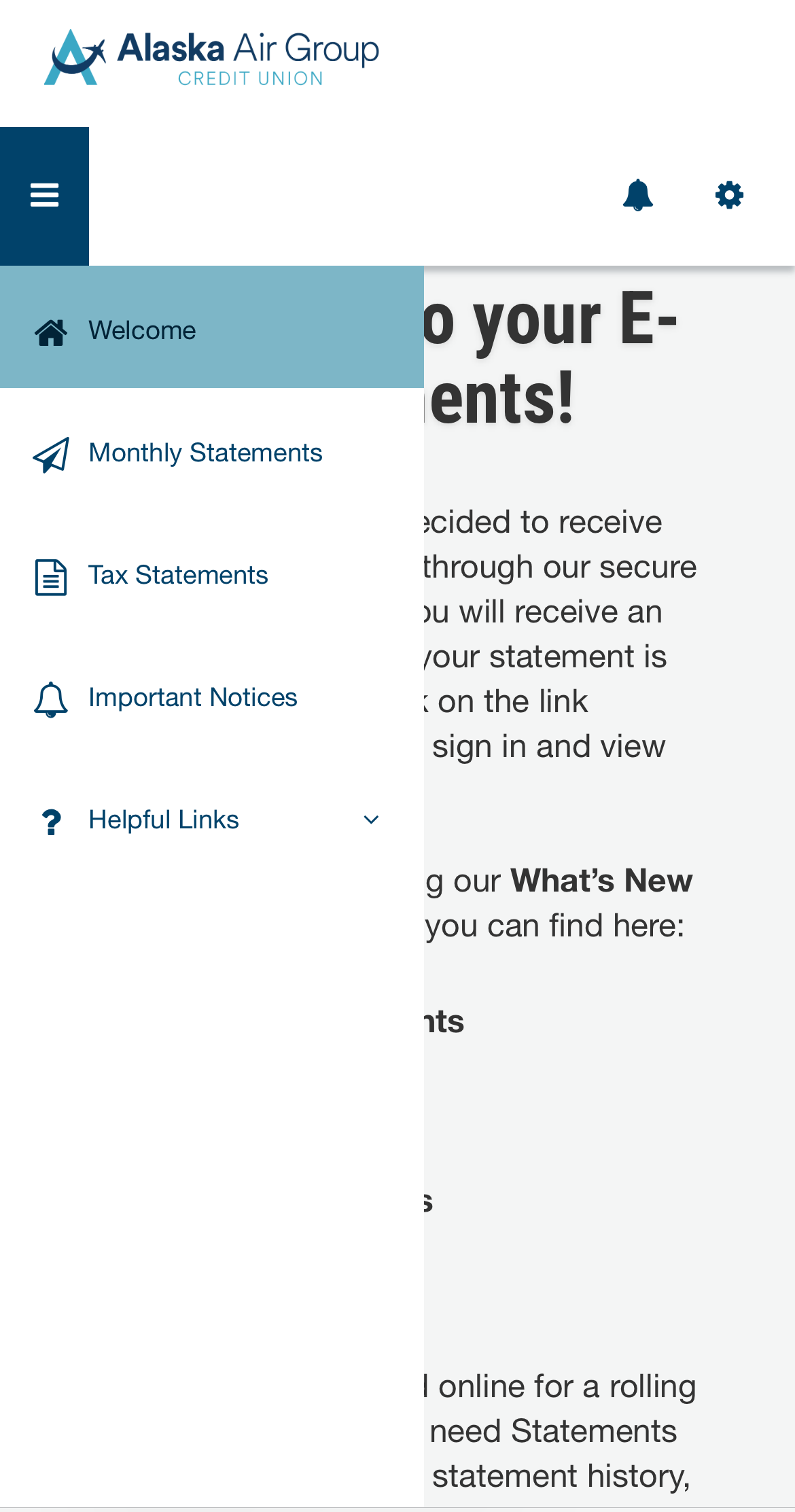
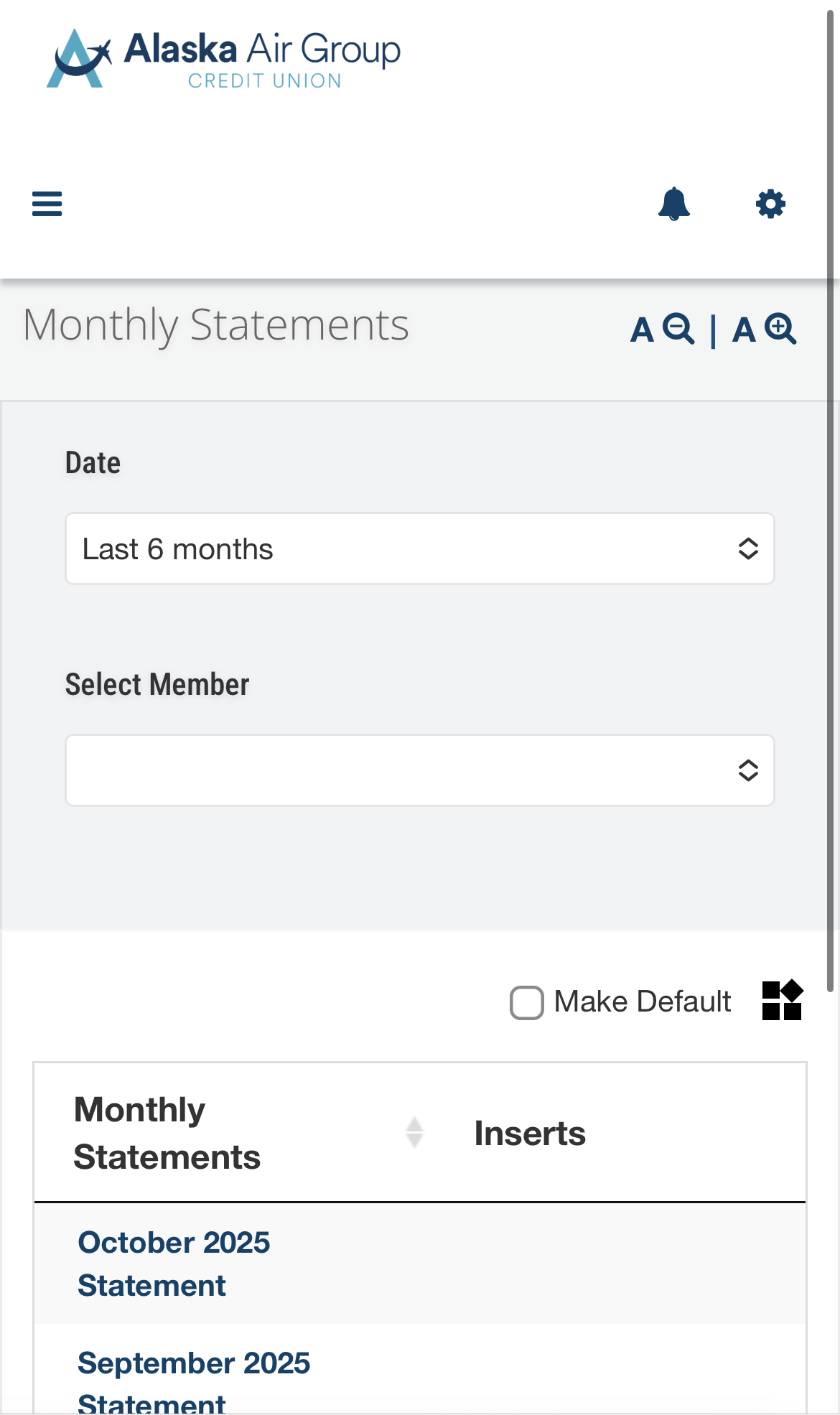 You can view e-statements in mobile banking by clicking the three horizontal lines at the top of the app. Under the “Manage Accounts” section, find “E-Documents” and it will take you to the screen above. Here, you will be taken to our new E-statement portal. In the portal, select the three lines on the top left corner and select "Monthly Statements". Here you can view your e-statements by selecting the time period you would like to pull from.
 In online banking, select "E-Documents" on the left toolbar and click “View Statements”.
If you are not already enrolled in E-Documents, select “Change to Electronic” to change your preferences from paper statements to E-Statements. If you receive an error message, please ensure third party popups and cookies are allowed for the URL: https://onlinebanking.aagcu.org/.
In online banking, select "E-Documents" on the left toolbar and click “View Statements”.
If you are not already enrolled in E-Documents, select “Change to Electronic” to change your preferences from paper statements to E-Statements. If you receive an error message, please ensure third party popups and cookies are allowed for the URL: https://onlinebanking.aagcu.org/.
8. Application Center
Looking to apply for a loan, add an additional account, or check our rates? Our Application Center has you covered. View our current rates, apply for a loan, or apply for additional Savings, Share Certificate, or checking account. Stay informed and manage your applications effortlessly through online banking or the mobile app. To locate the Application Center, click on the three horizontal lines on the top navy bar of your screen and scroll down until you find the image above.
  In online banking, select the "More" tab on the left toolbar, and select "Loan Application".
9. Change Address
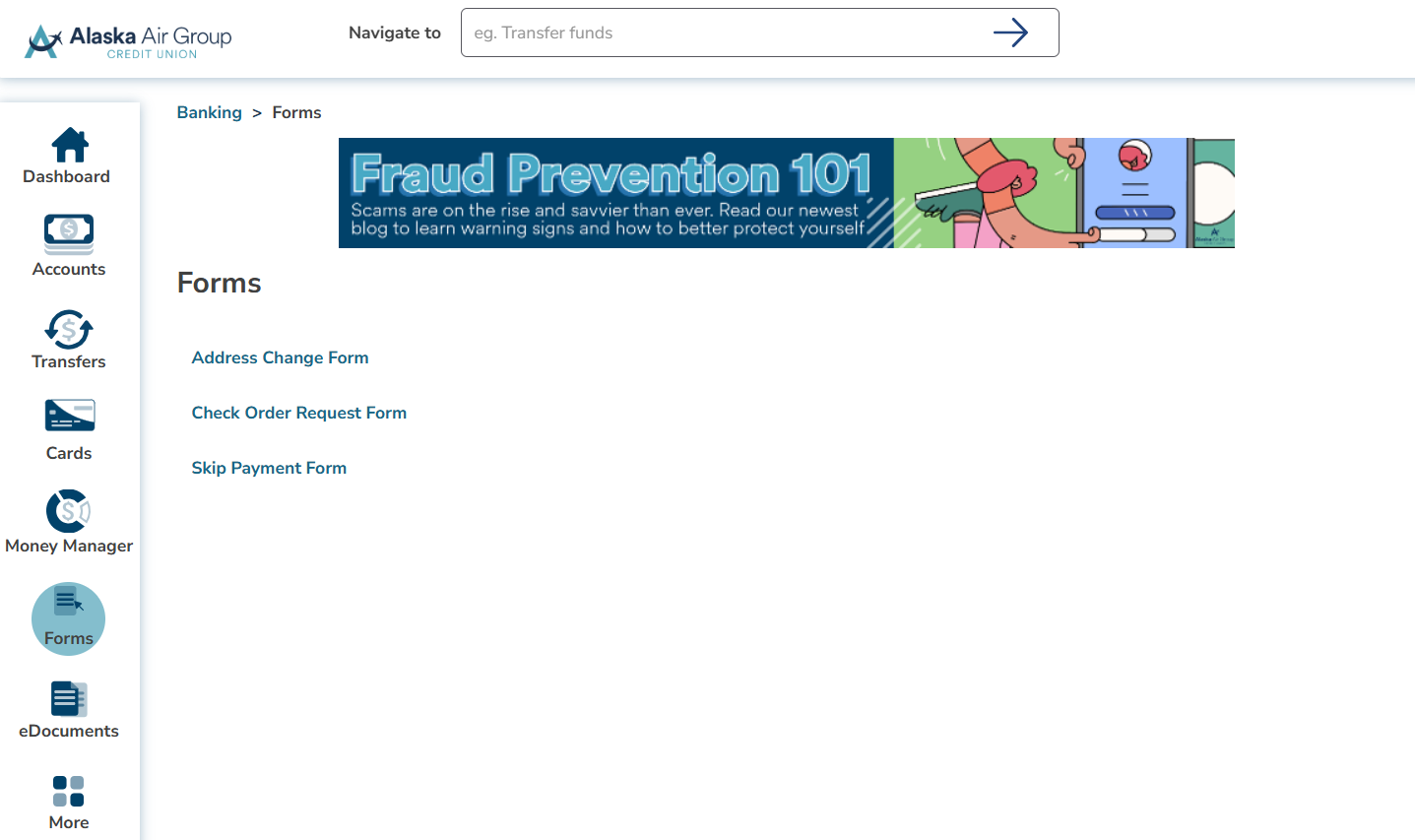
Did you recently move? It’s quick and easy to update your address through our online and mobile banking platforms. Click the three horizontal lines on the top right corner, scroll down to "Settings" and select "Contact Information". The screen below will pop-up allowing you to fill out an address change form.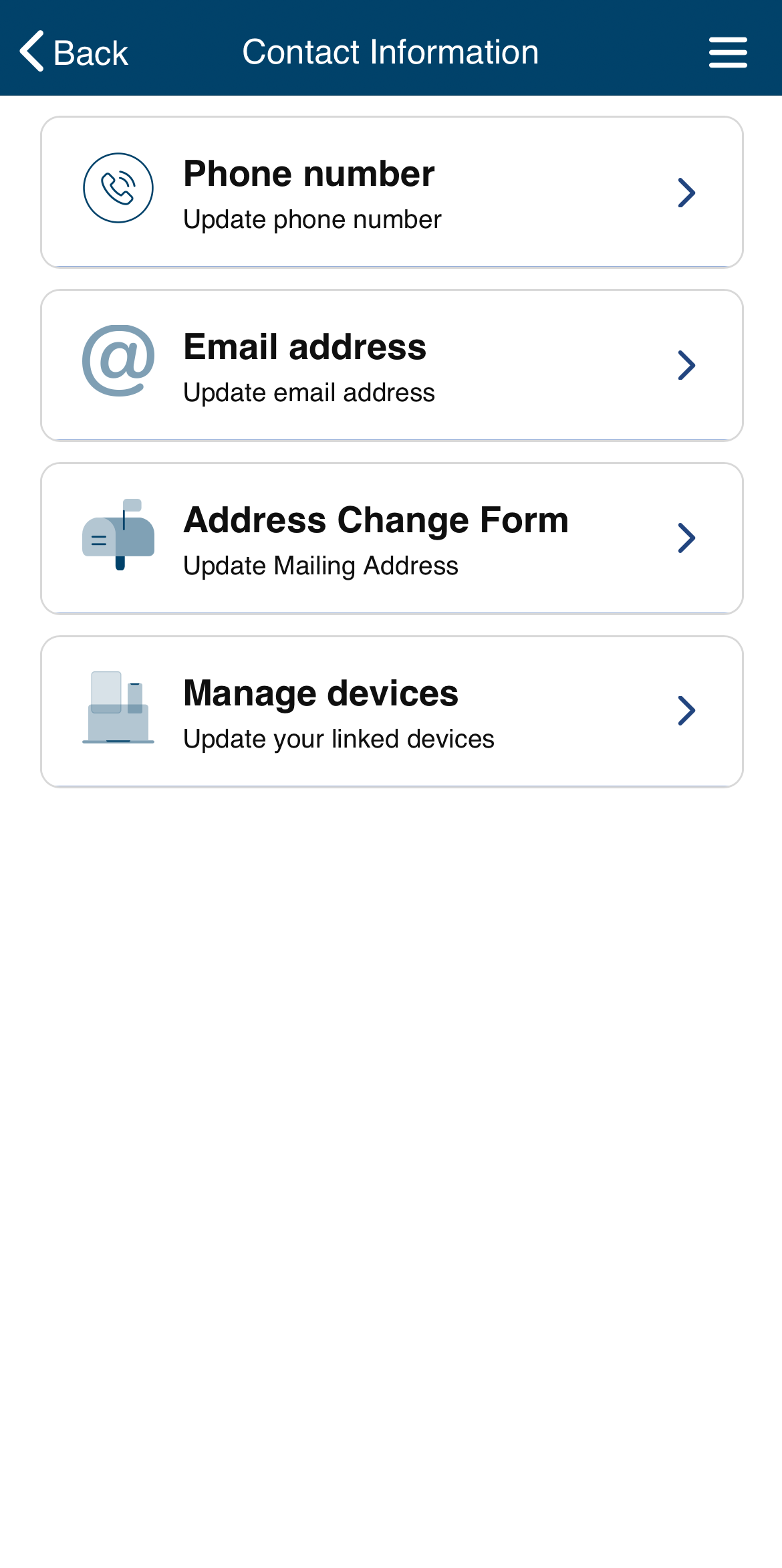 In online banking, select the "Forms" tab on the left toolbar and click “Address Change Form".
 In online banking, select the "More" tab on the left toolbar, and select "Request Check Withdrawal".
We hope these tips help you make the most of your online banking experience and simplify your financial management. If you have any questions or need assistance, our team is always here to help.
In online banking, select the "More" tab on the left toolbar, and select "Request Check Withdrawal".
We hope these tips help you make the most of your online banking experience and simplify your financial management. If you have any questions or need assistance, our team is always here to help.
Was this blog helpful?
Thank you for reading! We value your feedback. Please let us know if you found this article helpful.